
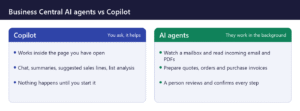
Business Central AI agents are background assistants inside Microsoft Dynamics 365 Business Central that read incoming emails and PDF documents and prepare the next document for you, such as a sales quote, a sales order or a purchase invoice. Two agents are available for everyday finance and sales work: the Sales Order Agent, which turns customer emails into quotes and orders, and the Payables Agent, which turns vendor invoice PDFs into purchase invoices. In both cases a person reviews and confirms each step, so nothing is posted automatically.
This guide explains how Business Central AI agents work, what you need before you start, how setup looks, where the limits are, and what to check if you are a business in India. It is written from our experience implementing and supporting Dynamics 365 Business Central for growing companies.
1. What Are Business Central AI Agents?
An AI agent in Dynamics 365 Business Central is a worker with its own user account and its own permissions. It watches a mailbox, reads what arrives, uses your Business Central data (customers, items, stock, vendors and G/L accounts) and prepares the next document. A named person reviews its work, and each confirmation is logged with date and time.
Agents appear as icons in the top bar of the Role Centre. Opening one shows its tasks, the items that need attention and measures such as emails handled and time saved.
Microsoft’s 2026 release wave also lists other agents, such as an Expense Agent and an Agent Designer for building custom agents. Their status has changed between releases, so check Microsoft Learn for the latest before planning around them. This guide covers the two agents most companies start with.
2. Business Central AI Agents vs Copilot
People often confuse the two.
- Copilot helps you while you work on a page: chat, summaries, suggested sales lines, list analysis and marketing text for items. Nothing happens until you ask.
- Agents run on their own schedule against incoming email and hand you reviewed documents. They use Copilot Credits, so cost and quota matter.
Most companies end up using both. Our Microsoft Copilot services cover the Copilot side.
3. Sales Order Agent in Business Central
The Sales Order Agent automates sales order processing for businesses that receive quote requests and orders by email. It reads the email and supported attachments (PDF, PNG and JPG), identifies the items, checks availability, and prepares a quote and an order.
How the Sales Order Agent works, step by step
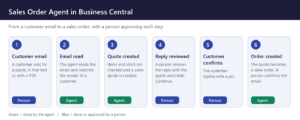
- The email arrives in the monitored Microsoft 365 mailbox.
- Customer matching. The agent identifies the sender through the email address on a customer or contact card. It does not match on names.
- Quote first. The agent always creates a sales quote as the first step. A quote has no effect on stock, planning or cash flow, so it is a safe place for AI-assisted work. Fields the agent filled are flagged for review.
- Reply drafted. The agent writes a reply with the quote attached. A reviewer checks it and clicks Continue to send.
- The customer confirms, even with a short reply such as “yes, please proceed”.
- Sales order created. The agent converts the quote into an order and drafts the confirmation email. The order is created, not posted.
Settings that shape how it behaves
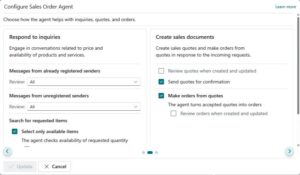
- Send quotes for confirmation and Make orders from quotes. The four combinations decide whether the customer sees a quote first, goes straight to an order, or a person finishes the job.
- Select only available items. When on, the agent checks stock for the requested date, location and unit and tells the customer if there is not enough.
- Review level, set separately for registered and unregistered senders.
- Capable-to-promise, which lets the agent offer later delivery dates for items not in stock now.
- Attachment analysis, mark email as read, a daily email limit and a custom signature.
4. Payables Agent in Business Central
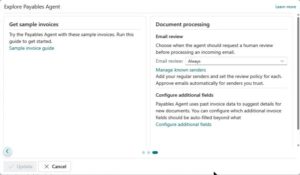
The Payables Agent is Business Central’s accounts payable automation agent. It processes vendor invoices and credit notes that arrive by email as PDF files.
How the Payables Agent works, step by step
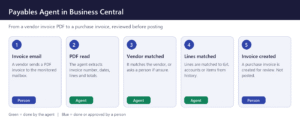
- The invoice email arrives in the monitored mailbox as a PDF.
- The PDF is read. The agent extracts the invoice number, dates, vendor details, lines and totals into a purchase document draft.
- Vendor matching. It matches the vendor using history, name, tax ID and address. If it is not confident, it asks a person.
- Line matching. Each line is matched to a G/L account or item using your purchase history, and the agent explains its reasoning.
- Purchase invoice created for review. Posting and approval stay with Finance.
What happens when the vendor does not exist yet?
The agent can suggest creating the vendor from the invoice. It fills in what it can read, such as name, address and country, and creates the vendor blocked, so nothing can be bought or paid until a person releases it. Before unblocking, a reviewer should check posting groups, tax details (for Indian vendors, GST registration and PAN), bank details and payment terms. This is the step we advise clients never to skip.
Working limits to know
Microsoft documents these limits for the Payables Agent: PDF files only, up to 5 MB and 10 pages each, up to 10 attachments per email, and up to 100 emails and 500 invoices per day. The PDF is read with Azure Document Intelligence. The agent is available for Business Central online (SaaS) only, and each company can have one Payables Agent.
5. Sales Order Agent vs Payables Agent
| Feature | Sales Order Agent | Payables Agent |
|---|---|---|
| Business process | Order to cash intake | Procure to pay, accounts payable |
| Input | Customer emails, with optional PDF, PNG or JPG attachments | Vendor invoice and credit note emails with PDF attachments |
| Output | Sales quote, sales order, reply and confirmation emails | Purchase invoice or credit memo, reviewed |
| Matches | Customer by contact email, items, stock | Vendor, lines, G/L accounts from history |
| Never does | Post, ship or invoice | Post, approve or pay |
| Start without a mailbox | Yes, with Create task | Yes, by uploading a PDF |
6. Requirements and Setup
What you need before you start
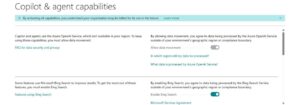
- Business Central online (SaaS), with the agent capability switched on under Copilot & agent capabilities.
- A Microsoft 365 mailbox, either a user mailbox or a shared mailbox, for email-driven use. The person who configures the agent needs Full Access and Send As on it. Exchange can take a few hours to apply new permissions.
- Permission to configure agents, and a list of users who may work with the agent’s tasks.
- Billing for agent capabilities configured for the environment, because agents use Copilot Credits.
- Clean master data: correct email addresses on customer and contact cards, vendors with tax IDs, and working number series.
Setup in four steps
- Turn on the capability on the Copilot & agent capabilities page.
- Connect the mailbox as a Microsoft 365 email account in Business Central.
- Configure the agent: mailbox and folder, review level, quote and order behaviour, signature and daily limit.
- Test with a real email, or start a Sales Order Agent task by hand.
A tip from implementations: if you want the Sales Order Agent to process only approved senders, point it at a subfolder and use Outlook rules to move those senders’ emails into it. Emails from everyone else never reach the agent.
7. Can Business Central AI Agents Work with Gmail?
Not directly. Microsoft documents that the mailbox for both agents must be a Microsoft 365 user or shared mailbox. A Gmail or Google Workspace inbox cannot be connected as it is.
The usual workaround is to create a Microsoft 365 shared mailbox and forward the Gmail messages to it. A forwarded message may arrive with the forwarder’s address as the sender instead of the customer’s, and the Sales Order Agent identifies customers by sender email, so test with real messages before you rely on it. You can also start without any mailbox: use Create task for the Sales Order Agent, or upload a PDF for the Payables Agent.
One licensing point we see often: Business Central licences do not include a mailbox. If your Microsoft 365 tenant has Business Central licences but no Exchange Online licences, there is no mailbox for the agents to read. Check this before you promise an email-driven demo.
8. How Much Do Business Central AI Agents Cost?
Agents use Copilot Credits, billed according to your billing setup. Microsoft’s billing documentation lists the credits for the Sales Order Agent’s actions, which makes estimating easy:
| Sales Order Agent action | Copilot Credits |
|---|---|
| Analyse the incoming email | 2 |
| Check item availability | 5 |
| Create or update a sales quote or order | 5 |
| Write the reply email | 2 |
| Typical request | about 14 |
The Payables Agent is billed per invoice processed. Check Microsoft’s current billing page for its rate, because billing has changed during the agent’s preview. If credits run out, agents stop reading new emails and resume when credits return. Set the daily email limit, watch usage in the Power Platform admin center, and clear old emails from the monitored folder before you switch an agent on, so it does not spend credits on stale mail.
9. Human Control and Safety
- Quotes, sales orders and purchase invoices are created, not posted.
- You choose the review level: every email, the first message of a conversation, or only unknown senders.
- Every step shows who confirmed it, with date and time.
- You can stop a task, or all tasks, and give the agent a one-line instruction when it needs help.
- The agent runs under its own permission set and can only reach what it needs.
10. Limitations to Plan For
- Mailbox sign-in can expire. If the agent reports it cannot access the mailbox, re-authorise the Microsoft 365 email account.
- Discounts. The Sales Order Agent does not handle discount requests. Quotes go out at price-list prices, so add discounts yourself or configure the agent to stop after the quote.
- Stock. With “Select only available items” on, the agent stops and asks a person when an item has no stock instead of guessing.
- Unknown senders. If the sender is not on a contact, Business Central offers to create a contact, use an existing one for this message only, or update an existing contact’s email.
- Number series. A missing number series for vendors or contacts can block creation of new records.
- Language. The Sales Order Agent is validated for Danish, English (several regions), French, German, Italian, Portuguese (Brazil) and Spanish. The Payables Agent is validated in English for Australia, the UK, the US and New Zealand. Hindi is not on these lists, so test your own emails.
11. Business Central AI Agents for Businesses in India
For Indian companies the agents solve the same intake problem, with a few extra points to plan for:
- Compliance stays in configuration. GST, TDS and e-invoicing are set up in Business Central. The agents do not make compliance decisions, so a reviewer still checks tax details on new vendors and on purchase invoices.
- Vendor master data. GST registration number, PAN, vendor posting groups and bank details are not guessed by the agent. Keep a checklist for newly created vendors.
- Email language. If customers write in Hindi or a Hindi-English mix, test before go-live.
- Licences and mailbox. Confirm Exchange Online licensing early.
- Data processing. AI processing may happen outside your region, so review the data movement setting on the capabilities page with your IT and compliance teams.
Availability of the Payables Agent depends on your Business Central country or region version, so confirm it against Microsoft’s current availability list.
12. Use Cases
Sales order automation in Business Central
- Distributors and traders who receive quote requests by email, with item names and quantities written in free text.
- Manufacturers who receive repeat orders as PDF purchase orders.
- Sales teams who spend time answering “is this in stock and what is the price” emails.
Accounts payable automation in Business Central
- Finance teams that key in dozens of PDF vendor invoices every week.
- Businesses that want a purchase invoice draft with G/L accounts proposed from history.
- Companies that add new vendors often and want the vendor card started from the invoice.
13. AI Agents vs Manual Entry vs Power Automate
| Approach | Best for | What you do |
|---|---|---|
| Manual entry | Very low volume | Read every email or PDF and type it into Business Central |
| Business Central AI agents | Email-driven sales orders and PDF vendor invoices | Review the agent’s steps and confirm; no flow to build |
| Power Automate or custom integration | Fixed, structured inputs with rules you can define | Design, build and maintain the flow and its error handling |
Agents fit best where emails and PDFs are unstructured and different every time. Rigid flows still make sense where the input format never changes.
14. Benefits of Business Central AI Agents
- Less re-keying of customer emails and vendor PDFs.
- Faster customer responses, with quotes and confirmations sent in the same email thread.
- Fewer data entry errors, with AI-filled fields flagged for review.
- Works on your own data, with no separate tool or integration.
- Audit trail, because every confirmation is logged.
- Measurable results, since the agent card shows emails handled, documents created and time saved.
Pair the agents with reporting. Power BI can track order volumes, quote conversion and payables ageing.
15. How to Roll Out Business Central AI Agents
- Pick one process. Start with the Sales Order Agent if you get repeat enquiries, or the Payables Agent if you handle many PDF invoices.
- Fix the data first. Correct customer and contact emails, vendor tax details and number series.
- Start with full review. Keep a person on every message and relax the review level as accuracy proves out.
- Use a dedicated mailbox or folder for each agent.
- Watch credits. Track consumption and set the daily email limit.
- Train reviewers. They should know how to correct an agent’s step and when to stop a task.
- Measure. Compare handling time and error rates before and after.
Frequently Asked Questions
What are AI agents in Dynamics 365 Business Central?
They are background assistants with their own user account that read incoming email, use your Business Central data and prepare documents such as quotes, sales orders and purchase invoices for a person to review.
What does the Sales Order Agent do in Business Central?
It reads customer emails and attachments, matches the customer, checks items and availability, creates a sales quote, emails it for confirmation, and converts the accepted quote into a sales order.
What does the Payables Agent do in Business Central?
It reads vendor invoice and credit note PDFs from email, extracts the data, matches the vendor and lines, and creates a purchase invoice for review. Posting and approval stay with your finance team.
Can Business Central agents post invoices or orders automatically?
No. They create quotes, orders and unposted purchase invoices. Posting, approval and payment remain with people.
Do Business Central AI agents work with Gmail?
Not directly. They need a Microsoft 365 user or shared mailbox. A common workaround is forwarding Gmail messages to a Microsoft 365 shared mailbox, which needs testing because the sender address may change.
Do I need a mailbox to try the agents?
No. The Sales Order Agent can start a task from a message you type in, and the Payables Agent can process a PDF you upload.
How many Copilot Credits does the Sales Order Agent use?
Microsoft lists 2 credits to analyse the incoming email, 5 to check item availability, 5 to create or update a quote or order and 2 for the reply, so a typical request is around 14 credits. Check Microsoft’s billing page for current rates.
Do the agents support Hindi?
Hindi is not on Microsoft’s list of validated languages for either agent. Other languages may work but quality is not guaranteed, so test with your own emails.
Is Business Central Copilot the same as the agents?
No. Copilot helps you inside a page when you ask. Agents work in the background on incoming email and hand you documents to review.
What is the difference between Business Central AI agents and Power Automate?
Power Automate runs flows you design for structured, predictable inputs. Business Central AI agents read unstructured emails and PDFs and prepare Business Central documents for review, without you building a flow.
Who can set up Business Central AI agents in Delhi NCR?
Preeminent Softcom, a Microsoft Dynamics 365 Business Central partner based in Noida, sets up and supports the agents for companies across Delhi NCR and India.
Get Business Central AI Agents Running in Your Company
We review your licences, mailbox and master data, configure the Sales Order Agent or the Payables Agent, and show you a live run on your own data. Read more about our Microsoft Dynamics 365 Business Central services or our guide to Microsoft Copilot partners in Delhi NCR, then get started now.
Sources: Set up Sales Order Agent (Microsoft Learn) and Set up Payables Agent (Microsoft Learn). Features, availability and billing change between releases; verify against Microsoft’s current