Why Your Bank Balance Doesn’t Match — and How Microsoft Dynamics 365 Business Central Fixes It
Have you ever checked your company’s bank statement and compared it to Microsoft Dynamics 365 Business Central — only to find the numbers don’t match?
Don’t worry, you’re not the only one.
This usually happens because of bank reconciliation — the process of aligning your company’s financial records with the bank’s statement. It may seem like a routine task, but it’s the backbone of maintaining accurate and reliable financial data.
At Preeminent Softcom, we believe financial accuracy starts with clarity, automation, and the right technology. In this article, let’s explore how Business Central simplifies reconciliation, reduces manual errors, and brings peace of mind to your accounting process.
What Is Bank Reconciliation?
Think of it like comparing your step count on a fitness app with your actual walk. Sometimes, the numbers don’t match, so you adjust.
That’s exactly what reconciliation does — it compares your company’s internal bank records with your actual bank statement and finds the differences.
When deposits, payments, and charges from your bank appear accurately in Business Central, your cash position becomes reliable and trustworthy.
How It Works in Business Central
The Bank Account Reconciliation page is where it all happens.
- Start a new reconciliation – Select your bank account, statement number, date, and closing balance.
- Import bank data – Upload the bank’s statement (CSV, XML, etc.) or enter transactions manually.
- Automatic matching – Business Central compares entries based on date, description, and amount.
- Fix remaining differences – Any unmatched items (fees, missing entries, or timing issues) are flagged for review.
- Post the reconciliation – Once all matches are confirmed, you post it to finalize your bank balance.
Every reconciliation is backed by a detailed audit trail, ensuring full transparency.
Why It Matters
Even a small mismatch can impact decision-making and financial health.
For example, your books show ₹80,000, but the bank shows ₹75,000 — that missing ₹5,000 could be a bank fee, a duplicate entry, or an unrecorded transaction.
Bank reconciliation helps you:
✅ Identify and fix errors early
✅ Maintain accurate cash flow
✅ Stay audit-ready and compliant
✅ Save time during monthly closing
Real-Life Example
Imagine receiving ₹10,000 from a client on September 30. You record it immediately in Business Central, but the bank processes it on October 1.
During September’s reconciliation, that amount won’t appear on your bank statement — it’s just a timing difference and will align in the next cycle.
Or say your bank deducts ₹25 as a service charge that wasn’t recorded in your books. Reconciliation catches it instantly, helping you correct the entry.
Automation Makes It Easier
Gone are the days of spreadsheets and manual ticking. Business Central automates much of the process:
- Auto-Matching Rules: Match transactions by date, description, and amount automatically.
- Bank Statement Imports: Upload or connect your bank feed for quick data import.
- In-window Adjustments: Record fees, interest, or rounding differences directly during reconciliation.
These automation tools save hours of manual work while reducing errors.
Meet Copilot — AI for Smarter Reconciliation
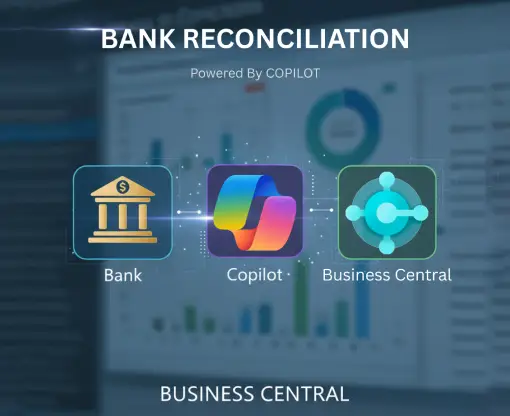
Microsoft’s Copilot in Business Central adds intelligence to the process:
- Finds matches that standard rules might miss
- Suggests correct ledger accounts for unmatched items
- Learns from your actions to improve future accuracy
It’s like having a reliable assistant that learns from experience and works 24/7 — ensuring faster and more precise reconciliation.
Common Issues and How to Avoid Them
⚠️ Importing the wrong file format
⚠️ Posting directly to the bank GL account
⚠️ Duplicate statement uploads
⚠️ Skipping the “Test Report” before final posting
Avoiding these small mistakes ensures smoother reconciliations every time.
Best Practices for Hassle-Free Reconciliation
✔ Reconcile frequently — weekly or bi-weekly
✔ Assign clear roles for preparation and approval
✔ Use consistent descriptions for easy tracking
✔ Train your team on the process
✔ Use automation, but always review manually before posting
The Bigger Picture
Bank reconciliation isn’t just a compliance task — it’s about trusting your financial data.
When your books and bank match, you:
- Make smarter decisions
- Forecast cash flow accurately
- Build confidence with auditors and management
At Preeminent Softcom, we help businesses leverage Microsoft Dynamics 365 Business Central to simplify and automate reconciliation — ensuring accuracy, transparency, and control.
Final Thoughts
Reconciliation gives you that satisfying confidence that every figure is accurate and verified.
Next time your bank statement arrives, just open Business Central, import, match, and post — no stress, no guesswork.
Need help setting up or automating your reconciliation process?
We’re here to assist.